Why Isn't My Website Showing Up on Google? 7 Checks You Can Run Yourself
The short answer: it's almost always a technical fault - not competition, and not "you need SEO" - and you can locate it yourself. These are the seven checks, in order:
- The thirty-second
site:check - tells you which scenario you're in. - A noindex tag forgotten from development
- A robots.txt blocking what it shouldn't
- No Search Console and no sitemap
- Content that only exists after JavaScript
- A canonical pointing at the wrong page
- Indexed - but no page answers the search
"We built a site six months ago. If I search Google for the business name - I can't find it." That's a very common situation, and it usually surfaces after someone has already been paid for SEO and nothing happened.
Here's what I say every time: before we talk about ranking, we need to confirm Google can even get into the site and add it to its index. Promoting a site Google can't see is like hanging a sign on a locked shop. And in most cases the problem isn't competition and isn't content - it's a five-minute technical fault nobody checked.
First: A Thirty-Second Check
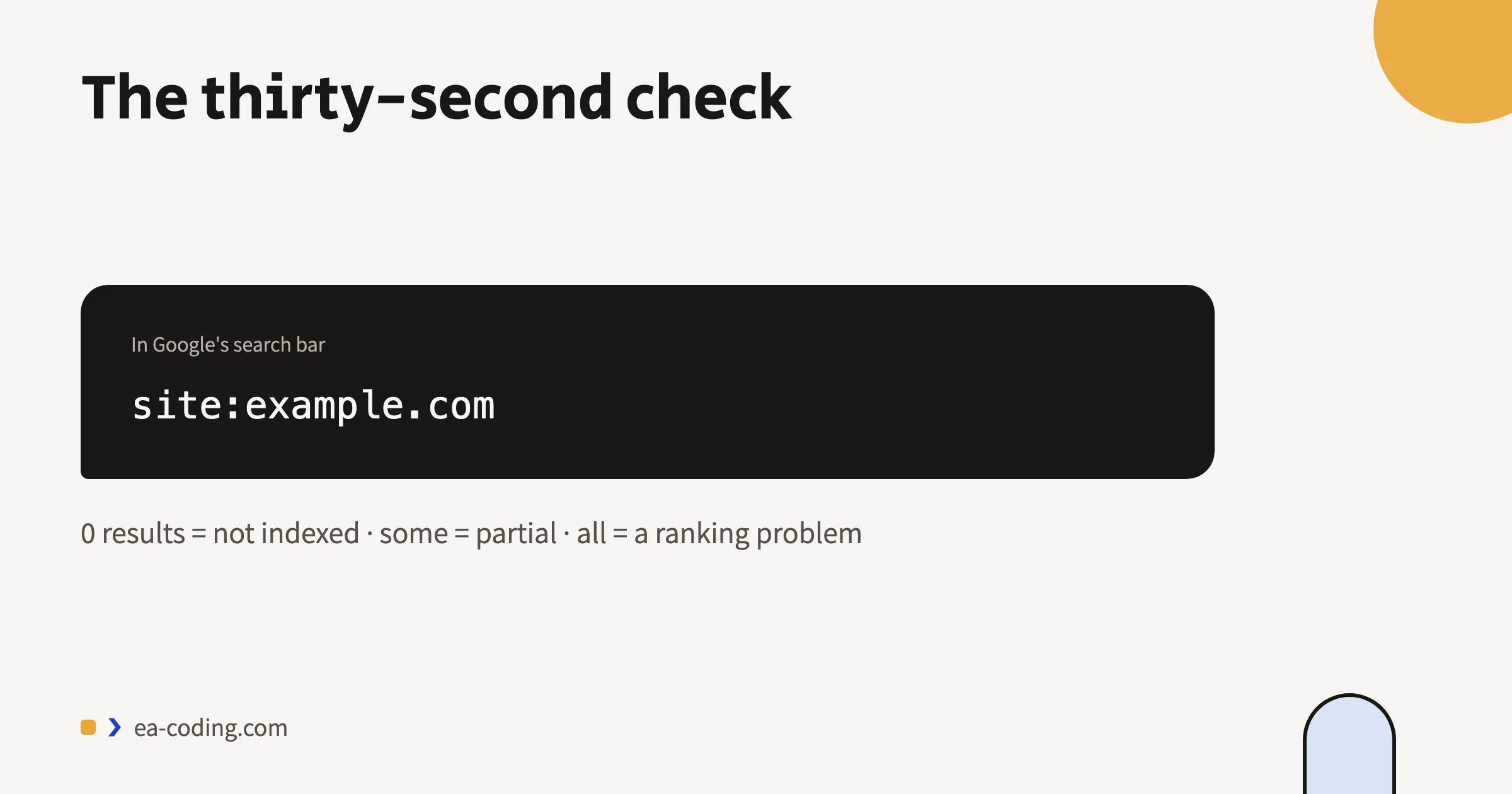
Open Google and search for site: followed by your address, with no space. For example:
site:example.com
What comes back is the list of pages Google knows about on your site.
- Zero results - the site isn't indexed at all. The cause is almost always in points 1–3 below.
- Some of the pages - partial indexing; points 4–5.
- Every page appears, but you still don't show up in searches - that's no longer an indexing problem, it's a ranking one. Point 6.
This check saves a lot of guesswork, so it's worth doing before any conversation about ad budgets.
1. The Site Is Still Marked "Do Not Index"
This is the number one cause, by a distance. When a site is being built, it gets closed off to search engines so the unfinished version doesn't end up in Google. Then it goes live, and nobody removes the flag.
In WordPress it's a single checkbox: Settings → Reading → "Discourage search engines from indexing this site." On other sites it's a tag in the code: <meta name="robots" content="noindex">.
How to check: right-click the page → "View source" → search for noindex. If it's there, you've found it.
2. robots.txt Is Blocking What It Shouldn't
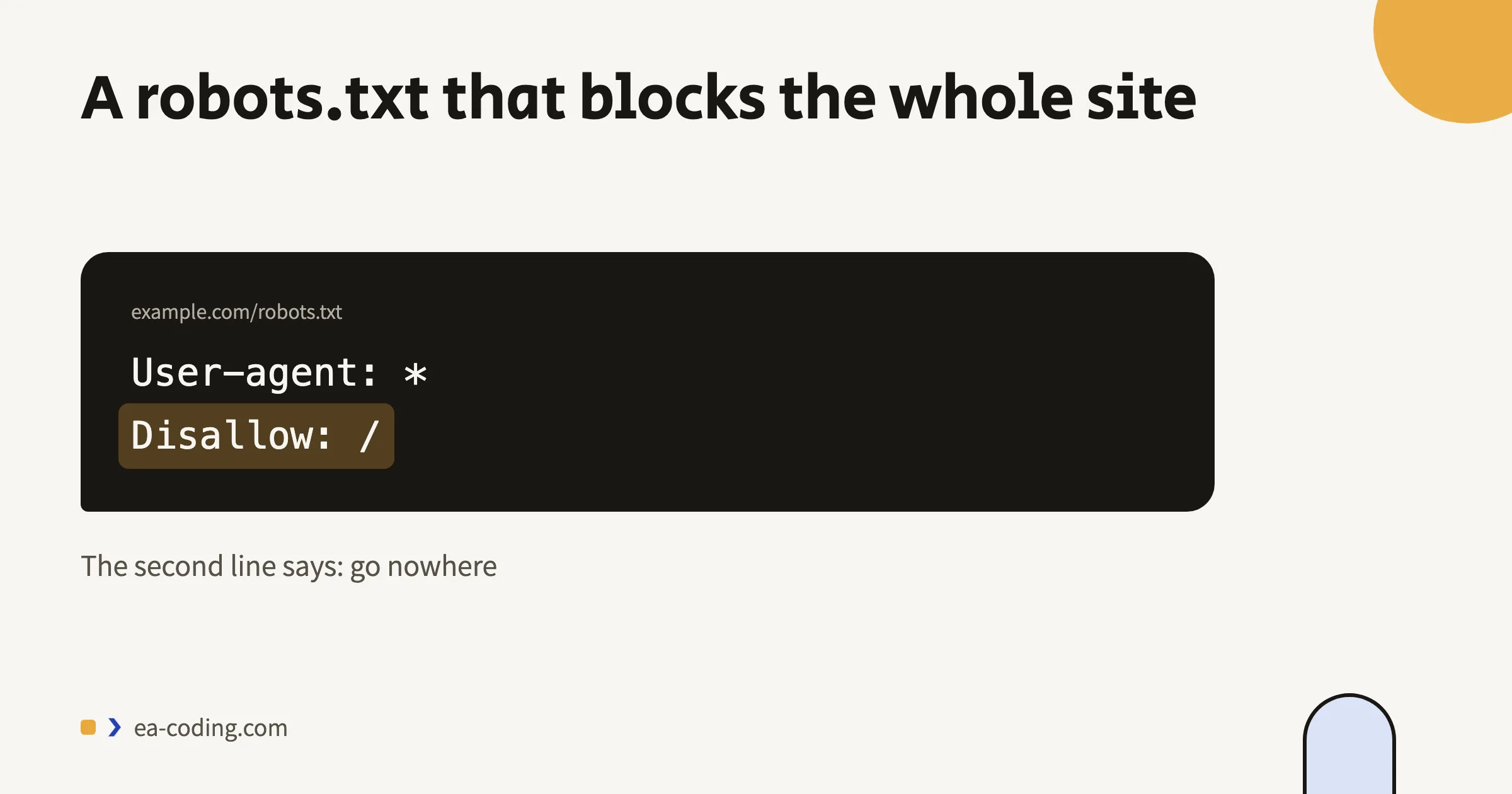
The robots.txt file lives at example.com/robots.txt and tells Google where it's allowed to go. One wrong line left over from the development environment can block the entire site:
User-agent: *
Disallow: /
That line says "don't go anywhere." Blocking your styling or script folders can hurt too, because it stops Google rendering the page the way a visitor sees it.
How to check: just open the address in a browser. If you see Disallow: / - there's your answer.
3. Nobody Connected Search Console, and There's No Sitemap
Google Search Console is free, and it's the only real way to see what Google thinks of your site: which pages went in, which were rejected and why. If nobody has connected it, you're guessing.
Two things are worth doing inside it on day one: submit the sitemap (usually example.com/sitemap.xml), and run a URL inspection on your homepage. That inspection will tell you exactly whether the page is indexed and, if not, why not.
4. The Content Only Exists After JavaScript Runs
Some sites hand the browser a nearly empty page and only then load the content with JavaScript. Google can run JavaScript, but it does so in a separate, slower pass - and if the content only appears after a user interaction (clicking a tab, scrolling to trigger a load), there's a good chance it simply never gets in.
How to check: "View source", then search for a sentence from the page. If the sentence isn't in the source but is on screen, that's what's happening.
5. Every Page Points at the Same Canonical
The canonical tag tells Google "this is the official address for this page." When it's set wrong - a template declaring the homepage on every page of the site, for instance - you're effectively asking Google to disregard everything else.
The classic result: the homepage shows up nicely and not one service page or article is found. It also happens a lot after a domain move, when the old addresses are left behind in the tags.
Most of what gets sold as an "SEO problem" is an infrastructure problem. There's no point pushing a site forward while the door is locked from the inside.
6. It Is Indexed - There's Just No Page Answering the Question
If site: returns all your pages and you still don't appear, the problem has moved from indexing to ranking. The common cause: no page on the site speaks the language people are searching in.
A site with one "Services" page mentioning eight things in a paragraph won't appear for any of them. A site with a dedicated page per service, headed with the words people actually type, will. Speed matters too - I went into that in the PageSpeed guide - but it multiplies an existing result rather than creating one from nothing. And how to write a page Google picks as the answer above everyone - in the position-zero guide.
Bonus for Bilingual Sites: When Google Shows the Wrong Version
This is very common in Israel and nobody warns you about it: you have a site in Hebrew and English, and a Hebrew search returns the English page. Or worse - Google shows only one version and ignores the other entirely.
The cause is almost always the same: Google doesn't know the two pages are the same content in two languages, so it treats them as competing pages and picks one.
What should be there:
- Reciprocal
hreflangtags. The Hebrew page points at the English one, and the English points back at the Hebrew. If the link only goes one way, Google ignores it. x-default, marking which version to send anyone who matches neither language.- Consistent URLs. If the tags point at one address and the site serves another - with or without a trailing slash, for instance - the link breaks silently. Worth checking that the address in the tags is exactly the one returning 200 rather than a redirect.
- A real translation, not the same text. Two versions with identical content count as duplication, not translation.
How to check: open "View source" on the Hebrew page, search for hreflang, confirm both he and en are there - then do the same on the English page and check it points back. Two minutes, and it explains a great many cases of "the page exists but doesn't show up".
The Opposite Problem: Too Many Pages in the Index
So far we've talked about pages that don't get in. There's also the reverse, and it's common in WordPress: Google has indexed hundreds of pages you never intended to exist - and that harms the pages that matter.
Where they come from:
- Tag and author archives. Every tag you create gets its own page. Fifty tags means fifty thin pages that all look alike.
- URLs with parameters. Filtering, sorting and internal search generate addresses like
?orderby=price- every combination is a different "page" as far as Google is concerned. On a store that can explode into hundreds. - Endless pagination (
/page/2,/page/3...). - Images as pages. WordPress creates a separate page for every media file. Nobody searches for those.
Why it hurts: Google has a limited crawl budget for your site. If it's spent on an empty tag archive, less is left for your service pages and articles. On top of that, a mass of thin, similar-looking pages dilutes the picture of the site.
How to check: run site: on the domain and look at the result count. If you have a 15-page site and Google knows about 300, you've found it. In Search Console, the pages report shows exactly which kinds of URL went in.
What to do: mark noindex on what was never meant for search (tag archives, media pages, internal search results), and make sure parameter URLs point their canonical at the clean version. Don't delete them - just stop offering them for indexing.
And What About ChatGPT and the Other Assistants?
An update straight from the field: customers have started finding businesses through chatbots, not only through search results. The good news - this isn't another channel to fix separately. Those assistants run a web search and read the same pages Google indexes, which means every fix in this guide serves them too: a site that isn't in the index doesn't exist for them either, and content that only appears after JavaScript is hard for them as well.
One addition unique to them worth checking: that your robots.txt isn't blocking the AI crawlers. How you actually get into their answers and what they look for on a site - broken down in a separate guide.
What This Isn't
This isn't "SEO magic," and it isn't a promise of first place. Nothing here will push you past larger competitors - it only makes sure you're in the game at all. A technically sound site is the starting line, not the finish.
Also: once it's fixed, it doesn't happen the same day. Google has to re-crawl, and that takes anywhere from a few days to a few weeks depending on the size of the site.
The Bottom Line
Before you pay anyone for SEO, run the site: check. If it returns zero, no amount of ad spend will help - what's needed is a technical fix, not a campaign.
And if you have a physical address, it's worth knowing that most searches relevant to you don't end at the website at all - I went into that in the local search guide.
Want me to look? Send me the URL - I'll go through these six and tell you exactly which one your site is falling on.
FAQ
Why isn't your website showing up on Google?
In most cases the cause is a technical fault, not competition: a noindex tag forgotten from development, a robots.txt blocking Google, no sitemap and no Search Console, content that only exists after JavaScript runs, or a wrong canonical. And sometimes the site is indexed - there's simply no page answering what people search for.
How do you check if a site is indexed on Google?
Search Google for site: followed by your address, no space (for example site:example.com). Zero results - the site isn't indexed at all; some pages - partial indexing; all pages show but you're still not in searches - that's a ranking problem, not an indexing one.
Do you have to pay to appear on Google?
No. Being added to Google's index is free and automatic once the site is technically sound. Fixing the faults in this guide makes sure you're in the game at all; paid promotion is a separate question, and there's no point paying for it before Google can even see the site.
More from the blog
Is an Accessibility Plugin Enough to Comply With Israeli Law?
A floating accessibility widget doesn't make a site comply with IS 5568. What the widget really does, where it fails, why it sometimes hurts, and what does cover you.
7 min readHow to Write a Website Accessibility Statement in Israel (With a Template)
The accessibility statement under Regulation 35: what the regulations require in it, where to put it, what never to write, and a template you can adapt to your site.
7 min readHow Do You Back Up a Website Properly? What, Where, and How Often
A backup that actually saves you: what must be in it (not just files), where never to store it, how often by site type - and how to know it works at all.
6 min read
Reaching me is the easy part.
A few lines in the form if you prefer writing - or straight to the channel you already use. Either way, it's me answering.